⭐⭐⭐⭐⭐ Whole page in one shot · Split saving · Just paste a URL · Windows

TocTok Page Capture

Free Full-Page Screenshot Tool · Free forever!

Paste a URL and get the page from top to bottom in one image. Long pages can be split into multiple shots automatically.

⬇ Free Download Now Windows only
Full captureEntire scroll, one image
Split captureBlog-ready pieces
Mobile widthPhone-view shots

Popular ways to use it

Receipts, research, references — page capture sorted.

★★★★★

“Pages that scroll forever come out as one image.”

★★★★★

“Split capture went straight into my blog post.”

★★★★★

“Paste URL, press button. That's the whole manual.”

★★★★★

“Mobile width shows exactly what phones see.”

★★★★★

“I archive order confirmations with it.”

★★★★★

“Essential for competitor research.”

★★★★★

“It waits for lazy-loading images. Smart.”

★★★★★

“Free and no watermark.”

More free TocTok tools

All free · no ads · swipe to explore

TocTok Recorder
TocTok Recorder

Record your screen, no watermark

Free screen recording with audio, pause and GIF export.
TocTok Capture
TocTok Capture

Screenshot & annotate in one

Press F2, drag, then mark up with pen, arrows and pixelate.

TocTok Memo
TocTok Memo

Sticky notes on your desktop

Auto-saved as you type, restored after every reboot.
TocTok Zip
TocTok Zip

Zip & unzip without ads

Create and extract archives, repairs garbled filenames.

TocTok Paint
TocTok Paint

Simple, light paint app

Pen, shapes, fill and text with 20-step undo.

TocTok Notepad
TocTok Notepad

Text that never breaks

Smart encoding detection, dark mode, find & replace.

TocTok Calendar
TocTok Calendar

A calendar that lives on your desktop

Click-to-note dates with adjustable transparency.

TocTok Hotkeys
TocTok Hotkeys

Don't memorize hotkeys — search them

90+ shortcuts in a tiny transparent floating finder.

TocTok Splitter
TocTok Splitter

Snap windows with one click

Halves, thirds and quarters — pixel-perfect, gap-free.

TocTok Virtual Desktop

Switch workspaces by click

A tiny bar for Windows' hidden virtual desktops.
TocTok Image Compressor

Shrink photos in bulk

Batch compress hundreds of images — originals untouched.
TocTok Video Compressor

Compress video in one click

Three presets — minimal quality loss, major size drop.

TocTok File Compressor

Drop any file, it shrinks

Photos, videos, audio, PDFs — the right method, automatically.
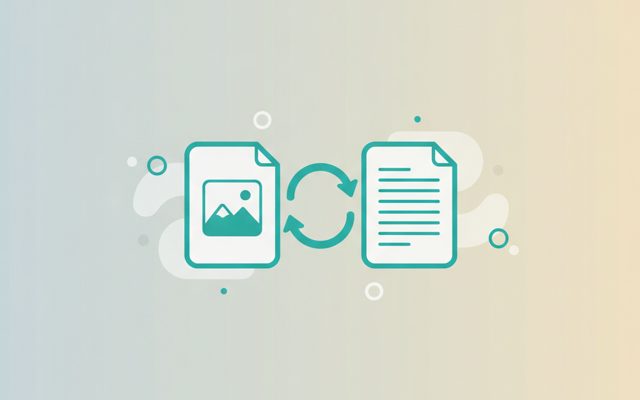
TocTok File Converter

Convert to any format

PDF↔images, video→MP3/GIF — all offline on your PC.

TocTok Video Editor
TocTok Video Editor

Cut, join, caption — done

Lossless cuts, transitions, music, filters. No watermark.
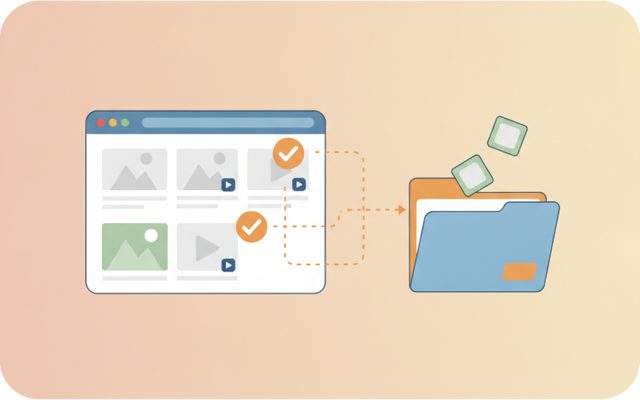
TocTok Page Saver
TocTok Page Saver

Pick & save page media

Analyze a page, preview, and bulk-save only what you tick.
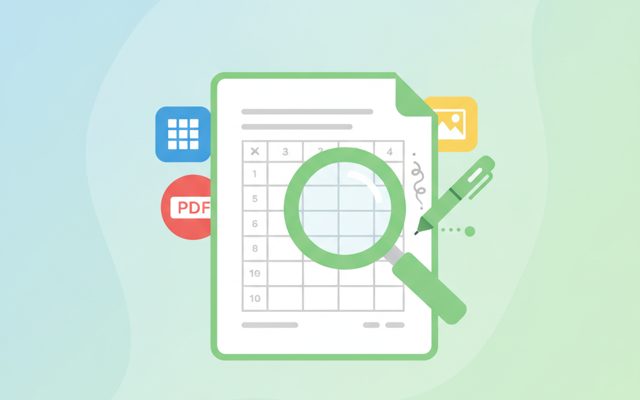
TocTok Viewer
TocTok Viewer

Excel, PDF, Word — one viewer

Open anything, then add notes, shapes and stickers.

TocTok Image Studio
TocTok Image Studio

Find, split, clean

Free stock search, flexible splitting, EXIF/GPS removal.
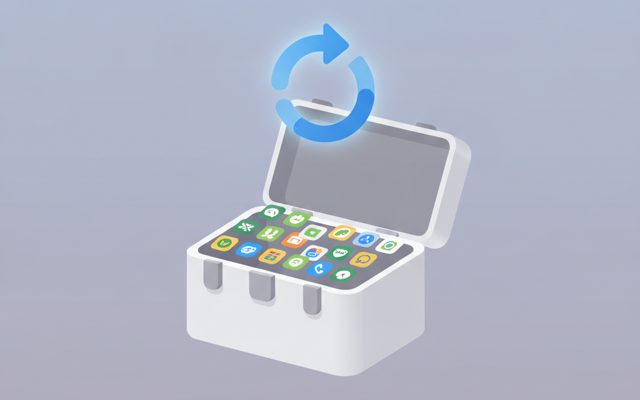
TocTok All-in-One
TocTok All-in-One

Every tool, one screen

Install, launch and auto-update the whole suite.

TocTok Page Capture Key Features

Everything a page capture tool needs.

📸

Full-page capture

Even endless-scroll pages become a single top-to-bottom image.

🧩

Split capture

Slice long pages every 1000/2000/3000px — perfect for blogs and docs.

📱

Width & format

Desktop (1280/1440/1920) or mobile (390) width, PNG/JPG, load-wait setting.

⬇ Free Download Windows only

TocTok Page Capture How to Use

Paste an address, press one button.

1

Paste the URL

Drop the page address into the input box.

2

Pick a mode

[Full capture] or [Split capture] — width and format in options.

3

Done

The image saves and the folder opens.

⬇ Get it free now Windows only

FAQ

Is it really free?

Yes — free forever, no limits.

How does it capture the whole page?

It quietly opens your PC's Edge browser without showing a window, loads the page and shoots it whole. Ultra-long pages (16,000px+) are captured in sections and stitched automatically.

When do I use split capture?

Blogs read better with several medium images than one giant one. Slices save as _1, _2…

Do login-only pages work?

It doesn't share your login sessions, so public pages only.

Any data collection?

None. Everything happens locally on your PC.

⬇ Free Full-Page Screenshot Tool Download Windows only

What is a full-page screenshot?

A normal screenshot grabs only what's on screen — but most webpages keep going far below the fold. Full-page (scrolling) capture saves the entire page, top to bottom, as one tall image. Essential for archiving orders and receipts, competitor research, and reference keeping.

How to use it

Paste a URL and press Full Capture. The app drives your PC's Edge browser headlessly, waits for lazy-loading images (0/2/5s), and shoots. Split Capture saves the same result sliced at your chosen height; Viewport captures just the first screen. Set width to 390 to see exactly what phones see.

Good to know

First run may take a few seconds to prepare the browser driver. Login-only pages and some bot-protected sites may not capture. If a capture contains someone else's content, keep it for personal use.

Pro tips

Split at 2000px is the sweet spot for blogs. Use PNG for archiving, JPG for smaller files. Shrink big captures with TocTok Image Compressor — or grab a page's original photos and videos with TocTok Page Saver.