Take a screenshot and edit it instantly — pen, arrows, text, pixelate. Press F2 anywhere and drag. Done in seconds.
Docs, bug reports, blog posts — capture, mark, paste.
“Capture then pixelate private info immediately. Perfect.”
“F2, drag, done. Truly instant.”
“Arrows + text make tutorials so easy.”
“Copies to clipboard automatically — just Ctrl+V.”
“Tiny install, fast start.”
“Free with a real editor built in. Rare.”
“Window capture grabs exactly the window.”
“Ctrl+Z lets me fix mistakes fearlessly.”
All free · no ads · swipe to explore
Free screen recording with audio, pause and GIF export.

Auto-saved as you type, restored after every reboot.
Create and extract archives, repairs garbled filenames.

Pen, shapes, fill and text with 20-step undo.
Smart encoding detection, dark mode, find & replace.

Click-to-note dates with adjustable transparency.

90+ shortcuts in a tiny transparent floating finder.

Halves, thirds and quarters — pixel-perfect, gap-free.
A tiny bar for Windows' hidden virtual desktops.

Batch compress hundreds of images — originals untouched.
Three presets — minimal quality loss, major size drop.

Photos, videos, audio, PDFs — the right method, automatically.
PDF↔images, video→MP3/GIF — all offline on your PC.
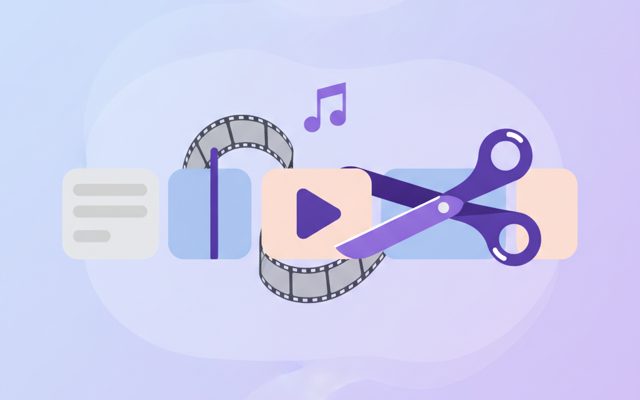
Lossless cuts, transitions, music, filters. No watermark.

Paste a URL — full-page and split scrolling screenshots.
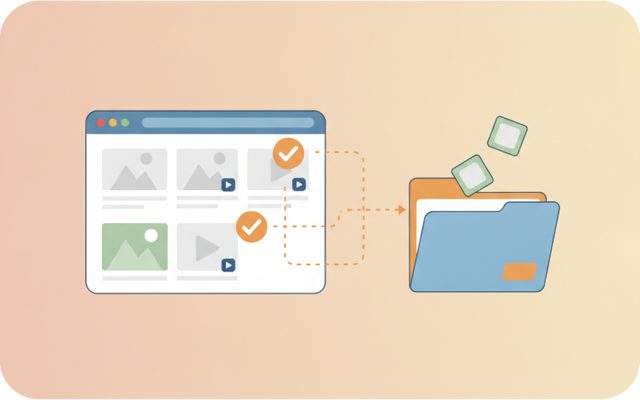
Analyze a page, preview, and bulk-save only what you tick.
Open anything, then add notes, shapes and stickers.
Free stock search, flexible splitting, EXIF/GPS removal.
Install, launch and auto-update the whole suite.
Everything a screenshot tool needs.
Drag any area, or capture the full screen / a single window. F2 / F3 hotkeys.
Pen, highlighter, boxes, arrows, text, pixelate, crop — with Ctrl+Z undo.
PNG/JPG save plus automatic clipboard copy — paste anywhere instantly.
First screenshot in 10 seconds.
The screen freezes and dims — from any app.
Your selection stays bright with live size info.
Annotate, then save PNG/JPG or just paste with Ctrl+V.
Yes — free forever, no watermark.
Yes — an editor opens instantly with pen, arrows, text, pixelate, crop and Ctrl+Z.
Drag the pixelate tool over names, numbers or faces.
Yes — captures are auto-copied to the clipboard. Just Ctrl+V.
No. Images stay on your PC only.
Windows' built-in snipping is fine until you need to mark something up — an arrow saying "click here", text explaining a step, or a blur over private data. Then you're off to an image editor. TocTok Capture merges the two: one hotkey captures, and the editor opens instantly with pen, highlighter, shapes, arrows, text, pixelate and crop.
Press F2 for region capture (drag on the frozen, dimmed screen), F3 for full screen, or pick a window from the panel. Annotate in the editor, undo with Ctrl+Z, then save as PNG (sharp) or JPG (small) — the image is also copied to your clipboard automatically for instant pasting.
Blur generously — high-resolution screens can reveal lightly-obscured text when zoomed. Check copyright before publishing captures of paid content. "Unknown publisher" on first run is normal for free unsigned apps.
Arrow + text is the fastest way to build how-to guides. Use clipboard-only mode for one-off shares to keep your folders clean. PNG for text-heavy captures, JPG for photos. Need moving pictures? TocTok Recorder handles video and GIF.